
Fassen Sie diesen Artikel mithilfe von KI zusammen





Sind Sie ein Site-Administrator oder unabhängiger Blogger, der Schwierigkeiten hat, Schema-Markup zu Webflow hinzuzufügen?
Schema-Markup, ein wichtiger Aspekt der technischen Suchmaschinenoptimierung, spielt eine wichtige Rolle bei der Optimierung von Inhalten für SEO und AEO. Sie helfen dabei, Nutzer und Suchabsicht gleichzeitig zu erfassen. Daher wird in dieser Anleitung Schritt für Schritt beschrieben, wie Sie Schema-Markup zu Webflow hinzufügen.
Was ist Schema.org?
Schema.org, oder Schema-Markup, ist eine logische und dennoch strukturelle Form der Organisation von Webseiteninhalten, die Suchmaschinen mitteilt, welche Art von Inhalt Sie hinzugefügt haben. Das Schema enthält vordefinierte Strukturen, die Algorithmen explizit über den Inhalt informieren, der der Website hinzugefügt wurde.
Es gibt verschiedene Arten von Schema-Markup, darunter:
- Artikel oder Blogbeitrag: Fügen Sie Metatitel, Metadaten, Beitragsbild, Autoreninformationen, Veröffentlichungsdatum, Tags, Kategorien und mehr hinzu, aus denen ein Blogbeitrag besteht.
- Produktschema: Es teilt der Suchmaschine mit, dass es sich bei dem jeweiligen Inhalt auf der Webseite um ein Produkt mit Verkäufen, Nutzerbewertungen, Preis, Herstellerdetails und mehr handelt.
- FAQ-Seite: Es ist ein Schema, das aus Inhalten im Q & A-Format besteht und die Suchmaschine explizit darüber informiert, dass es sich bei dem angegebenen Inhalt um eine häufig gestellte Frage handelt.
- Breadcrumb-Schema: Diese Art von Schema hilft Suchmaschinen, die Hierarchie der Website zu verstehen und zu verstehen, wohin sie gerade navigieren.
- Lokales Geschäftsschema: Es listet Details zu einem lokalen Unternehmen in Ihrer Nähe auf und listet dessen Dienste, Verfügbarkeit, Nutzerbewertungen, Rezensionen, Preisdetails und mehr auf.
- Autorenschema: Enthält Informationen über einen Autor, seine Biographie, die Anzahl seiner Artikel und verwandte Details, die Suchmaschinen helfen, ihn besser zu kennen.
- Schema überprüfen: Es ist ein strukturiertes System, in dem Benutzer ihre Erfahrungen und Erkenntnisse über ein bestimmtes Produkt oder eine bestimmte Dienstleistung austauschen können.
Warum ist Schema in Webflow wichtig?
Schema hilft zwar dabei, die Sichtbarkeit zu verbessern und über Snippets gezielten Traffic anzuziehen, bietet aber die folgenden Vorteile:
- Umfangreichere Suchergebnisse: Da Schema Suchmaschinen hilft, Ihre Inhalte besser zu verstehen, verbessert es die Sichtbarkeit, erhöht die CTR und liefert bessere Suchergebnisse. Derzeit hilft es sogar bei der Answer Engine Optimization, da die KI-Suche der neue Trend ist. Es zieht sogar Feature-Schnipsel an.
- Steigert die Sichtbarkeit der Marke: Je mehr Optimierung und desto mehr Traffic es anzieht, desto besser verbessert Schema die Sichtbarkeit der Marke.
- Verbessert die SERPs: Mit besseren Klicks, besserer Markensichtbarkeit, qualifiziertem Traffic, Featured Snippets und der Generierung von KI-Snippets qualifiziert das Schema automatisch Inhalte, die in den SERPs im Vordergrund stehen.
JSON-LD gegen Mikrodaten
JSON-LD und Microdata sind beide Möglichkeiten, Ihrer Website Schema- oder strukturierte Daten hinzuzufügen. Mikrodaten bestehen jedoch aus Daten, die in HTML-Tags eingebettet sind, was in großem Maßstab schwierig zu verwalten ist.
Im Vergleich dazu empfiehlt Google, ein Schema über JSON-LD hinzuzufügen, das Informationen in einem separaten <script>Block enthält <head>oder <body>das einfacher zu implementieren ist. Darüber hinaus ist es weniger komplex und einfacher zu verwalten und bietet somit Skalierbarkeit ohne eine komplexe Lernkurve.
Außerdem sind Mikrodaten in HTML-Inhalten enthalten und können daher die Ladezeit von Webseiten verlangsamen, was sich negativ auf die Suchmaschinenoptimierung auswirkt, während JSON-LD die Seitengeschwindigkeit nicht beeinträchtigt.
Wie füge ich strukturierte Daten JSON-LD in Webflow hinzu?
Es gibt drei Möglichkeiten, strukturierte Daten in Webflow über benutzerdefinierte Codeeinbettung, mithilfe von Webflow CMS und dynamischem Schema oder mithilfe von Tools und Plugins von Drittanbietern hinzuzufügen. Lass uns das im Detail besprechen!
Methode 1: Verwenden der benutzerdefinierten Codeeinbettung
Die einfachste Methode, strukturierte Daten in Webflow hinzuzufügen, ist innerhalb eines Abschnitts oder einer Webseite mithilfe des Script-Tags.
Um es einzuschließen, müssen Sie Folgendes verwenden:
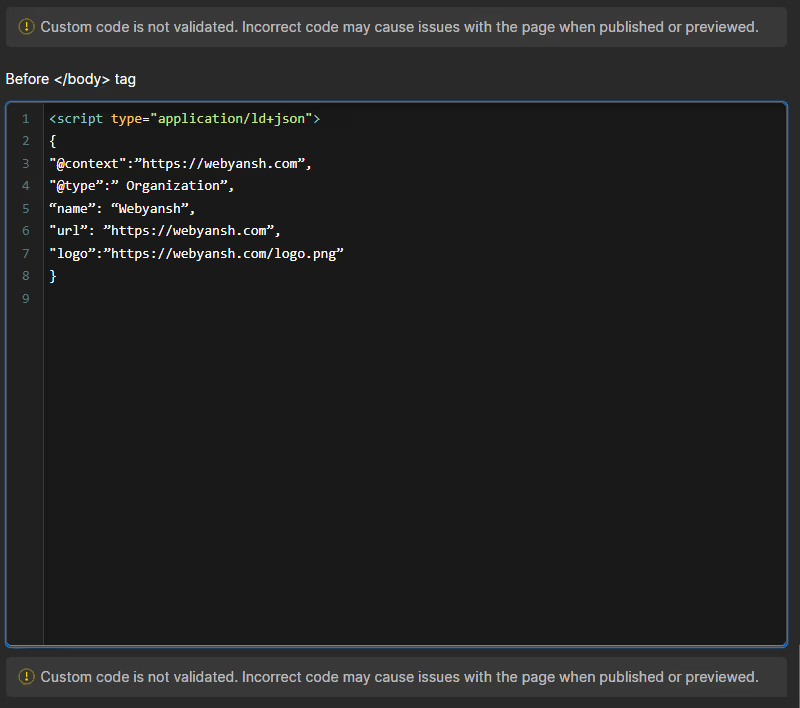
<script type="application/ld+json">
{
„@context „:“https://webyansh.com“,
„@type“:“ Organisation“,
„name“: „Webyansh“,
„URL“:“https://webyansh.com“,
„Logo“: "https://webyansh.com/logo.png“
}
//Hier werden alle Eigenschaften und ihre Daten als Schlüssel-Wert-Paare im angegebenen Format eingeschlossen
</script>
Um dieses Skript hinzuzufügen, verwenden Sie die Option Komponente einbetten und fügen Sie es von Seiteneinstellungen > Vor dem Tag.
Methode 2: Verwenden Sie Webflow CMS und dynamisches Schema
Es besteht aus zwei Schritten zum Hinzufügen strukturierter Daten in Webflow.
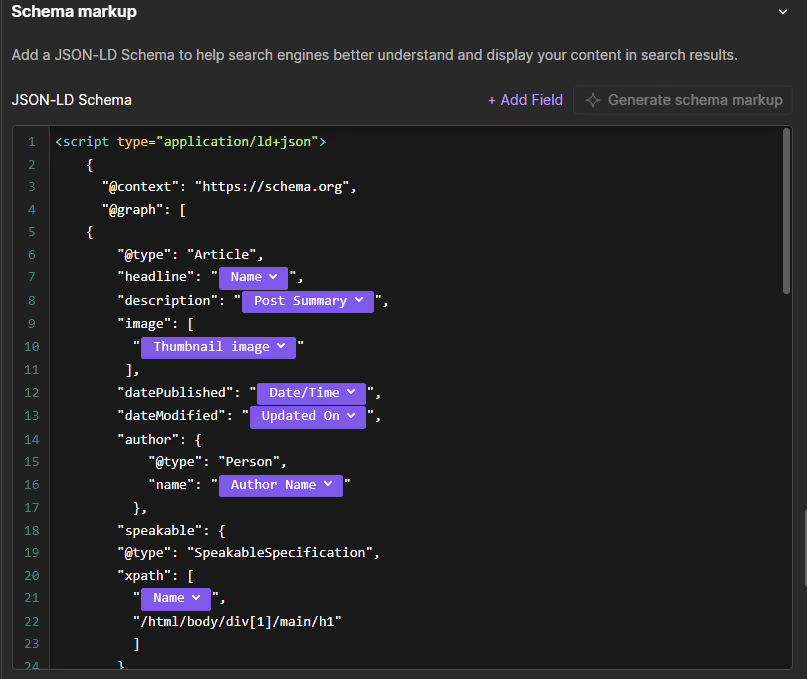
Schritt 1: Erstellen Sie benutzerdefinierte Felder in Ihrem CMS, wie Metatitel, Autor, Metadaten, Veröffentlichungsdaten, zuletzt aktualisiert, geprüft von usw.
Schritt 2: Verwenden Sie als Nächstes dynamische Variablen, um automatisch strukturierte Daten JSON-LD für jede Webseite oder jeden Abschnitt zu generieren.
<script type="application/ld+json">
{
"@context „:" https://schema.org „,
"@type „: „Blogbeitrag“,
„Überschrift“: „{{cms-title}}“,
„Autor“: {
"@type „: „Person“,
„name“: „{{cms-author}}“
},
„DatePublished“: „{{cms-Datum}}“,
„bild“: „{{cms-image}}“
}
</script>
Methode 3: Verwenden Sie Tools und Plugins von Drittanbietern
Die meisten Blogger oder Personen, die sich nicht wohl dabei fühlen, JSON-LD manuell zu schreiben, insbesondere diejenigen, die Daten in großem Umfang beinhalten, verwenden Tools und Plugins von Drittanbietern.
Einige der Tools und Plugins für diesen Zweck umfassen:
- Schema-Markup-Generator (JSON-LD) von TechnicalSEO.com
- JSON-LD Schemagenerator von jsonld.com
- Merkle Schema Generator von twaino.com
Kopieren Sie außerdem die generierten strukturierten JSON-LD-Daten und fügen Sie sie mithilfe der Embed-Methode in Webflow ein.
Wie füge ich ein Schema in Webflow hinzu?
Schritt 1: Schema-Markup generieren
Generieren Sie das JSON-LD-Schema mit einer der oben aufgeführten Methoden.
Schritt 2: Webflow-Projekt öffnen
- Loggen Sie sich in Webflow ein
- Wählen Sie die Webflow-Seite, auf die Sie das Schema anwenden möchten.
Schritt 3: JSON-LD-Code hinzufügen
- Gehe zu Seiteneinstellungen > Benutzerdefinierter Code > Vorher
Andernfalls können Sie die Drag-and-Drop-Funktion verwenden, um das Skript in den Einbettungscode einzufügen.
Schritt 4: Veröffentlichen und Testen
Veröffentlichen Sie das Skript und testen Sie es dann mit Tools von Drittanbietern wie Rich-Ergebnistext von Google, und wenn es ein Problem mit dem Schema gibt, beheben Sie es sofort.
Häufige Fehler beim Hinzufügen von Schema-Markup zu Webflow
Das Hinzufügen von Schema-Markup verbessert zwar die Suchmaschinenoptimierung Ihrer Website, Fehler können jedoch deren Wachstum behindern. Hier sind die häufigsten Fehler, die die meisten Menschen machen:
- Ungültige JSON-LD-Syntax: Bei falscher Syntax, fehlenden Befehlen, Klammern oder ähnlichem werden die gesamten strukturierten Daten in Webflow ungültig.
- Falscher Schematyp ausgewählt: Viele verwenden generische Schemas in ihrem Webflow anstelle von spezifischen Schemas, z. B. das Artikelschema für Nachrichten und ähnliches. Diese optimieren den Inhalt nicht für eine optimale Anzeige umfangreicher Ergebnisse.
- Unvollständige und falsche Feldwerte: Die Verwendung falsch formatierter Daten oder Werte oder einer Syntax, die keine wesentlichen Eigenschaften enthält, führt zu Validierungsfehlern. Wenn Sie beispielsweise MM-DD-YYYY verwenden und den Wert in einem anderen Format angeben, wird ein Fehler ausgegeben.
- Duplizierung von Schema-Markups: Viele Leute schreiben das Schema manuell und fügen es zu ihrem Webflow hinzu. Außerdem generieren sie eines mit Plugins/Tools für denselben Inhalt, wodurch ein ungültiges Schema entsteht.
- Die Website vor der Veröffentlichung nicht testen: Testen Sie die Website vor der Veröffentlichung immer auf Schema-Markup, um nach etwaigen Problemen zu suchen und diese zu beheben.
- Platzierungsfehler in Webflow: Wenn Sie das Schemaskript falsch in den <head><body>Abschnitt oder Ihres Webflows einbetten, kann dies zu Konflikten führen.
Bewährte Methoden beim Hinzufügen eines Schemas zu Webflow
Verwenden Sie die folgenden bewährten Methoden, um die oben genannten Fehler zu vermeiden:
- Verwenden Sie Schema-Markup für alle Inhaltstypen wie FAQs, Rezensionen, Nachrichten und nicht nur für Artikel.
- Verwenden Sie Plugins oder Tools, um ein Schema zu generieren und Syntaxfehler zu vermeiden.
- Betten Sie das Schema in den <head>Abschnitt ein.
- Halten Sie das Schema-Markup gemäß der Struktur und dem Inhalt Ihrer Website auf dem neuesten Stand.
- Verwenden Sie Google Search Console Analytics, um zu überprüfen, wie sich die Snippets in den Suchergebnissen verhalten.
Verwenden Sie außerdem zusätzliche technische SEO-Funktionen für eine bessere Optimierung.
Inhaltsformate, die gut funktionieren
Die folgenden Arten von Schema- oder Inhaltsformaten eignen sich gut für die Suchmaschinenoptimierung:
- Artikel/Blogbeiträge/Neuigkeiten: Artikel, Blogbeiträge und Nachrichteninhalte sorgen für eine bessere Sichtbarkeit Ihrer Website, wenn sie häufig verwendet werden.
- E-Commerce-Produkte: Das E-Commerce-Produktschema mit Bewertung, Preis, Details und Angebot bietet bessere Verkaufschancen und zieht qualifizierten Traffic an.
- Lokale Unternehmen: Das LocalBusiness-Schema mit Adresse, Öffnungszeiten und Kontaktinformationen hilft bei der lokalen Suchmaschinenoptimierung.
- Codeschnipsel kopieren/einfügen: Bei technischen Websites, die mit der IT-Branche zu tun haben, funktionieren Codeschnipsel durch Kopieren und Einfügen besser, da sie dazu beitragen, die Nutzerabsicht zu erfassen.
- Anleitungen: Ein HowTo-Schema mit schrittweisen Anweisungen schneidet in Tutorials besser ab, da es Algorithmen mit einer detaillierten Methode anleitet.
- Häufig gestellte Fragen: FAQPage für Frage-Antwort-Paare ist sehr beliebt, insbesondere auf Websites, auf denen Produkte/Dienstleistungen verkauft werden.
- Ereignis: Für die Werbung für Veranstaltungen verwendet das Event-Schema Daten, Ort, Interpreten, Genre und dergleichen.
- Stellenausschreibungen: Das JobPosting-Schema mit Stellenbeschreibung und solchen Details hilft dabei, offene Stellen zu fördern.
KI-Schemagenerierung in Webflow
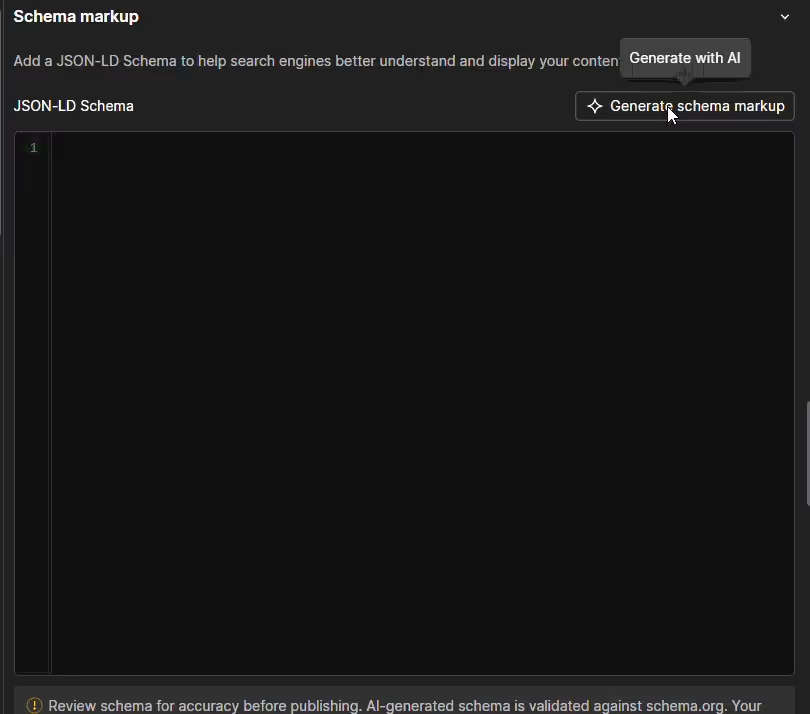
Webflow bietet jetzt eine integrierte KI für die Schemagenerierung, mit der Sie ein Schema für Sammlungsseiten und alle anderen Seiten Ihrer Websites hinzufügen können.
Gehen Sie wie folgt vor, um den AI-Schema-Generator in Webflow zu verwenden:
- Öffnen Sie Ihre Website in Webflow und navigieren Sie zu der Seite, auf der das Schema hinzugefügt werden muss
- Wählen Sie in der linken Werkzeugleiste das Seiten-Bedienfeld
- Bewegen Sie den Mauszeiger auf die Seite und klicken Sie auf das Zahnradsymbol, um die Einstellungen zu öffnen
- Scrollen Sie zu Schema-Markup und klicken Sie auf Schema-Markup generieren, damit Webflow AI es für Ihre Seite erstellt
- Klicken Sie auf die Schaltfläche Speichern und veröffentlichen Sie Ihre Website, um das Schema live zu schalten
Unabhängig davon, ob Sie Webflow AI verwenden, manuell hinzufügen oder ein Drittanbieter-Tool verwenden, verwenden Sie immer Tools, um es zu testen.
Schemalokalisierung in Webflow
Schemalokalisierung in Webflow bedeutet, das Schema für eine bestimmte Region mit der Absicht der lokalen Suchmaschinenoptimierung zu lokalisieren.
Webflow AI unterstützt kein gebietsschemaspezifisches Schema-Markup, daher müssen Sie den manuellen benutzerdefinierten Code der Seiteneinstellungen für jede lokalisierte Version der Webseite verwenden. Mit Webflow können Sie für jede Sprache und jedes Gebietsschema unterschiedliche Schemas hinzufügen.
Erstellen Sie daher das JSON-LD-spezifische Schema für das jeweilige lokale Unternehmen/den Dienstanbieter, indem Sie Details wie Währung, Sprachcodes, Adresse und mehr hinzufügen, z. B. en-US für die englische Übersetzung in die USA.
Außerdem sollten Sie Schemagenerator-Tools verwenden, um die genaue Syntax und Felder für die Version zu ermitteln. Sogar die InLanguage-Eigenschaft sollte den richtigen ISO-Sprachcode enthalten.
Gehen Sie außerdem zu Webflow > Designer > Seiten > Lokalisierte Seite > Einstellungen > Benutzerdefinierter Code.
Als Nächstes wiederholen Sie den Vorgang für alle Sprachversionen Ihrer Webseiten und testen Sie sie alle, um das korrekte Schema sicherzustellen.
Häufige Probleme mit der Webflow-Schemalokalisierung und deren Behebung
Die nativen Lokalisierungsfunktionen von Webflow machen es einfacher, aber ihre Implementierung kann viele Probleme verursachen. Eine davon ist, dass das Schema für jede Version der Seite richtig lokalisiert werden sollte.
- Hardcoring-Schema ohne Lokalisierungsvariablen
Der Hauptfehler besteht darin, dass viele Benutzer einen einzigen, aber statischen Schemablock für die Informationen des primären Gebietsschemas verwenden, sodass alle lokalisierten Versionen ihn enthalten.
Verwenden Sie daher CMS-Variablen, um dies zu vermeiden. Wenn Ihr Schema beispielsweise für die Produktseite eines CMS bestimmt ist, stellen Sie sicher, dass Felder wie Produktname und Beschreibung die richtigen Schemaeigenschaften haben.
Verwenden Sie außerdem für statische Seiten den lokalisierten Schemacode im Abschnitt Benutzerdefinierter Code der Seiteneinstellungen jedes Gebietsschemas separat. Das. Das Schema wird inhaltlich und sprachlich lokalisiert.
Fügen Sie außerdem für das Organization- oder LocalBusiness-Schema die Eigenschaften @language und AddressCountry hinzu, um die Lokalisierung entsprechend der Zielsprache und Region vorzunehmen.
- Falsches hfreflang-Tag im Schema
Webflow unterstützt die Lokalisierung und verarbeitet die erforderlichen Hreflang-Tags im HTML-Header. Sie müssen jedoch in bestimmten Schematypen, die dies nicht unterstützen, entsprechende Lokalisierungshinweise angeben.
Verwenden Sie daher Webflow, um die erforderlichen rel=“ alternate“ hreflang=“ x“ -Tags in den Seitenüberschriften zu platzieren. Stellen Sie sicher, dass die kanonischen URLs jeder lokalisierten Seite auf sich selbst und nicht auf die Version in der Primärsprache verweisen.
- Fehler bei der Schemavalidierung nach der Lokalisierung
Oft ändern Sie Textzeichenfolgen in einem JSON-LD-Block, was zu Syntaxfehlern führen kann, insbesondere wenn verschiedene Sprachen verwendet werden. Beispielsweise kann ein lokalisierter Titel ein doppeltes Anführungszeichen ohne Escapezeichen enthalten, das zu einer ungültigen JSON-LD-Struktur führt.
Verwenden Sie daher den Google Rich Results Test für die URL jeder lokalisierten Seite nach der Veröffentlichung, um das Schema zu überprüfen. Verwenden Sie außerdem beim Abrufen von Inhalten aus CMS-Feldern in einem benutzerdefinierten Codeschema die richtigen Escape-Zeichen, um eine Trennung des Schemas zu verhindern.
Wiederverwendbare Schema-Vorlagen (Copy-Paste-fähig)
Im Folgenden finden Sie häufig verwendete Schema.org-Vorlagen, die auf den meisten Websites funktionieren. Sie können diese Beispiele kopieren und an den Inhalt Ihrer Seite in Webflow anpassen.
- Artikel//BlogPosting Schema
Warum das verwenden:
Dies ist das gängigste und sicherste Schema für Blogs, Anleitungen und Tutorials. Es hilft Suchmaschinen, den Autor, das Veröffentlichungsdatum und den Kontext Ihrer Inhalte zu verstehen.
Verwenden Sie dieses Schema für: Blogbeiträge, ausführliche Leitfäden, Artikel in der Wissensdatenbank.
- FAQ-Seitenschema
Warum das verwenden:
Das FAQ-Schema ist ideal, wenn Ihre Seite sichtbare Fragen und Antworten enthält. Es verbessert die Klarheit des Inhalts und kann die Darstellung Ihrer Seite in den Suchergebnissen verbessern.
Verwenden Sie dieses Schema für: Blog-FAQs, Serviceseiten, Produkterklärungen.
- Organisationsschema
Warum das verwenden:
Das Organisationsschema definiert Ihre Markenidentität und wird häufig auf der gesamten Website verwendet. Es hilft dabei, Ihre Website mit Ihrer Unternehmenseinheit und Ihren sozialen Profilen zu verbinden.
Verwenden Sie dieses Schema für: Homepages, Über Seiten, globales SEO-Setup.
- BreadcrumbList-Schema
Warum das verwenden:
Das Breadcrumb-Schema hilft Suchmaschinen dabei, die Seitenhierarchie zu verstehen, und verbessert die Übersichtlichkeit der Navigation, insbesondere auf Blogs und CMS-gesteuerten Websites.
Verwenden Sie dieses Schema für: Blogbeiträge, Kategorieseiten, Dokumentation.
- Serviceschema (generisch)
Warum das verwenden:
Das Serviceschema eignet sich gut für Agenturen, Berater und professionelle Dienstleister. Es ist flexibel und einfacher anzupassen als produkt- oder SaaS-spezifische Schemata.
Verwenden Sie dieses Schema für: Serviceseiten für Agenturen, Beratungsangebote.
Fazit
Das Einbetten von Schema-Markups in Webflow informiert die Suchmaschinen darüber, worum es in Ihren Inhalten geht, und spielt daher eine entscheidende Rolle bei der Suchmaschinenoptimierung. Es hilft Bots sogar dabei, Ihre Website zu durchsuchen, und spielt somit auch bei AEO eine Rolle. Es stehen viele Schematypen zur Verfügung, und die Auswahl des richtigen Typs mit Implementierung ist für die Optimierung in die richtige Richtung unerlässlich.
FAQs zur Implementierung von Schema.org Rich Snippets in Webflow (JSON-LD)
Wie füge ich ein Schema in Webflow hinzu?
Die am meisten empfohlene Methode ist die Verwendung von JSON-LD in einem Skript-Tag, das in Seiteneinstellungen → Vorher platziert</body> ist. Google bevorzugt JSON-LD, weil es sauber, skalierbar und einfacher zu verwalten ist als Microdata.
Unterstützt Webflow dynamische Schemas über CMS?
Ja. Sie können CMS-Felder (Titel, Autor, Datum, Bild usw.) erstellen und sie mithilfe dynamischer Variablen in JSON-LD einfügen. Dadurch kann jedes CMS-Element automatisch sein eigenes Rich Snippet generieren.
Ist der KI-Schema-Generator von Webflow korrekt?
Webflow AI generiert ein verwendbares Schema für die meisten Seiten, aber es ist nicht immer lokalisierungsbereit oder vollständig für fortgeschrittene Suchmaschinenoptimierung. Es eignet sich gut für eine schnelle Einrichtung, eine manuelle Überprüfung und ein manuelles Testen werden jedoch weiterhin empfohlen.
Wo sollte JSON-LD in Webflow platziert werden?
Platzieren Sie JSON-LD in Seiteneinstellungen → Benutzerdefinierter Code → Davor</body> oder betten Sie es mithilfe des Embed-Elements in eine Komponente ein. Das Schema sollte Ihre HTML-Struktur nicht unterbrechen.
Kann Schema-Markup das Ranking in Google verbessern?
Das Schema verbessert das Ranking nicht direkt, aber es hilft Suchmaschinen, Ihre Inhalte zu verstehen. Dies führt zu einer besseren SERP-Sichtbarkeit, reichhaltigen Ergebnissen, Featured Snippets und einer höheren CTR, was indirekt die Suchmaschinenoptimierung verbessert.